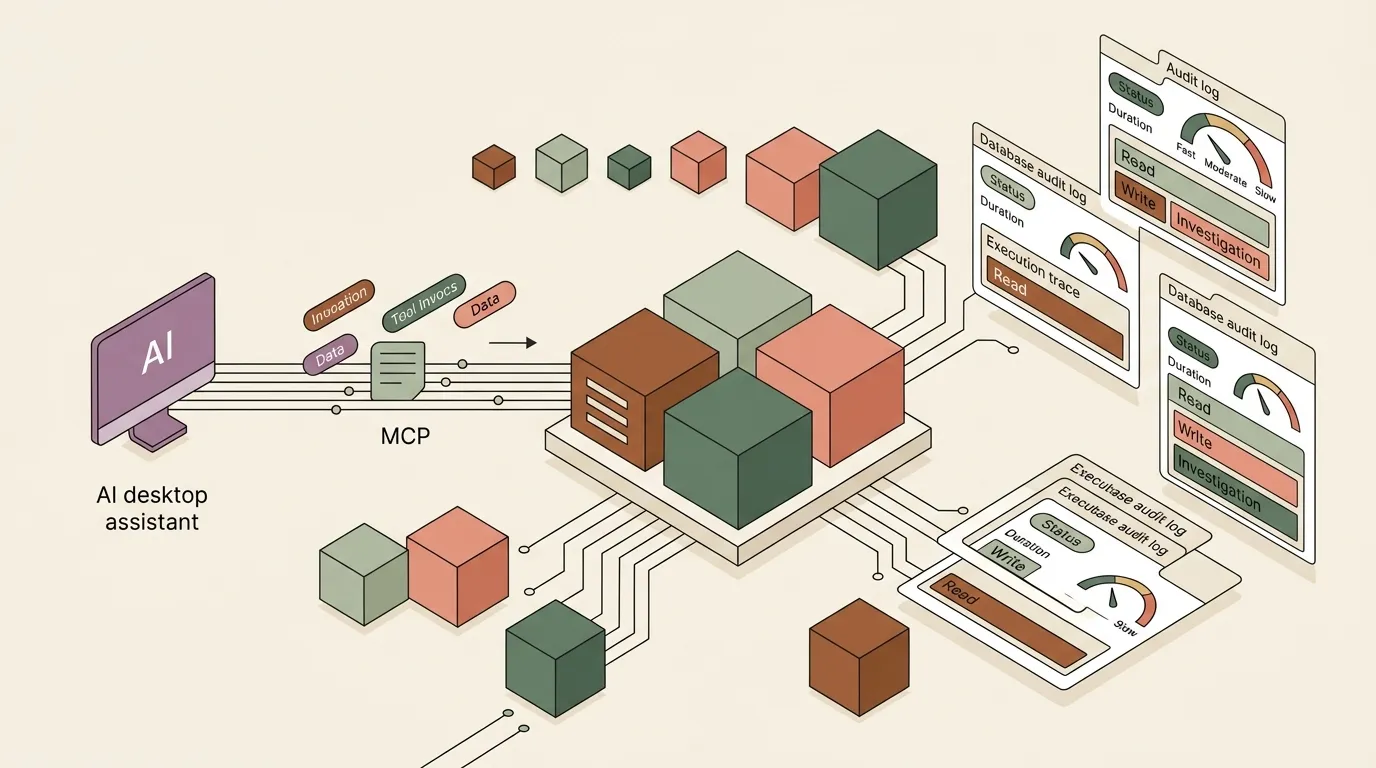
As AI assistants evolve from conversational chat interfaces into autonomous agents equipped with Model Context Protocol (MCP) toolkits, they are executing real-world operations: querying databases, updating cloud infrastructure, modifying files, and refactoring business schemas.
Yet in most developer and enterprise environments, these actions remain a black box—ephemeral tool-call logs trapped inside local client sessions without durable audit trails, relational attribution, or aggregated operational visibility.
In this article, we demonstrate how to achieve zero-code, prompt-driven AI agent observability by connecting Claude Desktop directly to Omnismith via MCP. We will examine the practical mechanics, the architectural design of a domain-agnostic agent execution schema, and real-world lessons learned from dogfooding autonomous assistant auditing.
The Desktop AI Observability Blindspot
When developers use desktop AI clients (such as Claude Desktop) equipped with MCP connectors, agents execute multi-step workflows across diverse tool servers.
While traditional backend microservices rely on OpenTelemetry collectors and APM agents, desktop AI clients lack native webhook configurations to ship internal tool telemetry. Traditional observability workarounds often require:
- Writing custom proxy wrappers around every MCP server over stdio.
- Managing separate log-forwarding daemons.
- Maintaining brittle client-side middleware.
However, modern LLMs already have complete semantic awareness of their intent, the tools they invoke, and the resources they interact with. By giving the assistant access to a dynamic schema platform like Omnismith and providing a lightweight operating directive, the agent can autonomously self-report structured execution traces with zero external infrastructure.
Architectural Evolution: Designing an Honest, High-Signal Schema
When designing the ai_agent_execution schema in Omnismith, an initial intuition might be to request exact wall-clock metrics like latency_ms.
However, practical dogfooding with Claude Desktop revealed key architectural lessons:
1. Swapping latency_ms for Qualitative Duration Buckets
Without native OS timer bindings, asking an LLM to self-report latency_ms produces pseudo-precise estimates. A far more honest and reliable signal for prompt-driven auditing is a qualitative list attribute:
Fast: Instant lookups, brief schema queries, or single-value reads.Moderate: Multi-record searches, template mutations, or complex multi-field writes.Slow: Heavy batch processing, large codebase inspections, or long-running tasks.
(Note: In automated backend agent pipelines using SDK middleware, numeric latency_ms metrics can still stream directly into Omnismith time-series tables).
2. Domain-Agnostic Relational Grounding (resource_type + resource_id)
A truly actionable audit log must answer what was touched. By pairing a generic resource_type with resource_id, every trace is linked to the exact system artifact affected.
Because Omnismith schemas are dynamic and domain-agnostic, these fields adapt seamlessly to any business domain—whether tracking e-commerce operations (Order, Customer, Invoice), cloud infrastructure (Cluster, Deployment, Service), or developer tools. In our concrete dogfooding scenario below, resource_type classifies operations across Omnismith primitives (Template, Entity, Workspace, Attribute, Dashboard, Automation, Project).
3. Workflow Correlation with session_id
Multi-step user requests often trigger a sequence of 5–10 distinct tool calls. Introducing a session_id (or correlation ID) enables grouping individual executions into a coherent, end-to-end trace.
4. Categorization & Failure Diagnostics
task_category: Classifies operations intoRead,Write, orInvestigationfor high-level operational filtering.error_message: Captures diagnostic stack traces or failure reasons whenexecution_status: error.
The Omnismith ai_agent_execution Schema
Here is the finalized schema structure modeled in Omnismith:
Template: ai_agent_execution (AI Agent Execution)
├── Group: Execution Details
│   ├── agent_id (Dimension: String) — e.g. "claude-desktop"
│   ├── tool_called (Dimension: String) — e.g. "update_template"
│   ├── execution_status (Dimension: List) — "success" | "error"
│   ├── duration (Dimension: List) — "Fast" | "Moderate" | "Slow"
│   ├── task_category (Dimension: List) — "Read" | "Write" | "Investigation"
│   └── session_id (Dimension: String) — Correlation ID
└── Group: Context & Diagnostics
    ├── resource_type (Dimension: List) — Target domain category
    ├── resource_id (Dimension: String) — Target UUID or Slug
    ├── prompt_summary (Dimension: Markdown) — User intent summary
    └── error_message (Dimension: Markdown) — Diagnostic error details
Step-by-Step: Enabling Observability in Claude Desktop
Step 1: Connect the Omnismith Custom Connector
In Claude Desktop:
- Navigate to Settings > Connectors.
- In top right, click Add Custom Connector.
- Paste the Omnismith MCP Server URL:
https://assistant.omnismith.io/mcp. - Click connect and authorize your project in Omnismith.
- Verify that Omnismith connector tools (
create_entity,get_schema_overview,search_entities, etc.) are active.
Step 2: Ask Claude to Create the ai_agent_execution Schema
The schema above doesn’t exist yet in a fresh project — nothing can log against it until Claude creates the template and its attributes. Point Claude at the schema and ask it to build it directly through the connector:
“In Omnismith, create a new template called
ai_agent_executionwith two attribute groups. Execution Details:agent_id(text),tool_called(text),execution_status(list: success, error),duration(list: Fast, Moderate, Slow),task_category(list: Read, Write, Investigation),session_id(text). Context & Diagnostics:resource_type(list),resource_id(text),prompt_summary(markdown),error_message(markdown).”
Claude creates the attributes and the template through the connector’s schema tools (create_attribute/create_template, or the combined scaffold_data_model call) — no manual configuration in the Omnismith UI. Confirm the template exists with get_schema_overview before moving to the next step.
Step 3: Configure the Prompt Directive
Add the following instruction to your Claude Desktop Project instructions or system prompt:
“You are operating with Omnismith observability enabled. Whenever you perform a complex workflow or invoke custom tools, always record an execution trace in Omnismith by invoking the
create_entitytool with templateai_agent_executionincludingagent_id: claude-desktop,tool_called: <tool_name>,execution_status: success|error,duration: Fast|Moderate|Slow,task_category: Read|Write|Investigation,resource_type: <type>, andresource_id: <id>.”
For a setup that persists without bloating every system prompt, wrap this directive as a Claude Skill instead of a one-off paste: in Claude Desktop, go to Customize > Skills > Create skill — or just ask Claude “turn this into a skill” and let the built-in skill-creator scaffold it. Skills are picked up automatically whenever they’re relevant, rather than sitting loaded in every conversation, and the same skill works across chat, Cowork, the Code tab, and the API. (Requires a Pro, Max, Team, or Enterprise plan with code execution enabled.)
Step 4: Execute & Observe
When Claude Desktop performs tasks (such as inspecting schemas, editing records, or running calculations), it seamlessly logs execution entries:
{
  "template_slug": "ai_agent_execution",
  "attribute_values": [
    { "attribute_slug": "agent_id", "value": "claude-desktop" },
    { "attribute_slug": "tool_called", "value": "update_template" },
    { "attribute_slug": "execution_status", "value": "success" },
    { "attribute_slug": "duration", "value": "Moderate" },
    { "attribute_slug": "task_category", "value": "Write" },
    { "attribute_slug": "resource_type", "value": "Template" },
    { "attribute_slug": "resource_id", "value": "01a053a8-326e-7320-864c-4ae8ca9c3271" },
    { "attribute_slug": "prompt_summary", "value": "Refactored schema attributes and swapped latency metric" }
  ]
}
Dogfooding in Action: The Self-Auditing Assistant
In our practical test of this workflow, Claude Desktop was asked to refactor an existing dynamic template.
After completing the update, Claude immediately dogfooded the new schema shape by logging its own execution under:
- Task Category:
Write - Resource Type:
Template - Duration:
Moderate - Execution Status:
Success
The entire trace populated directly in Omnismith’s Workspace Table View:
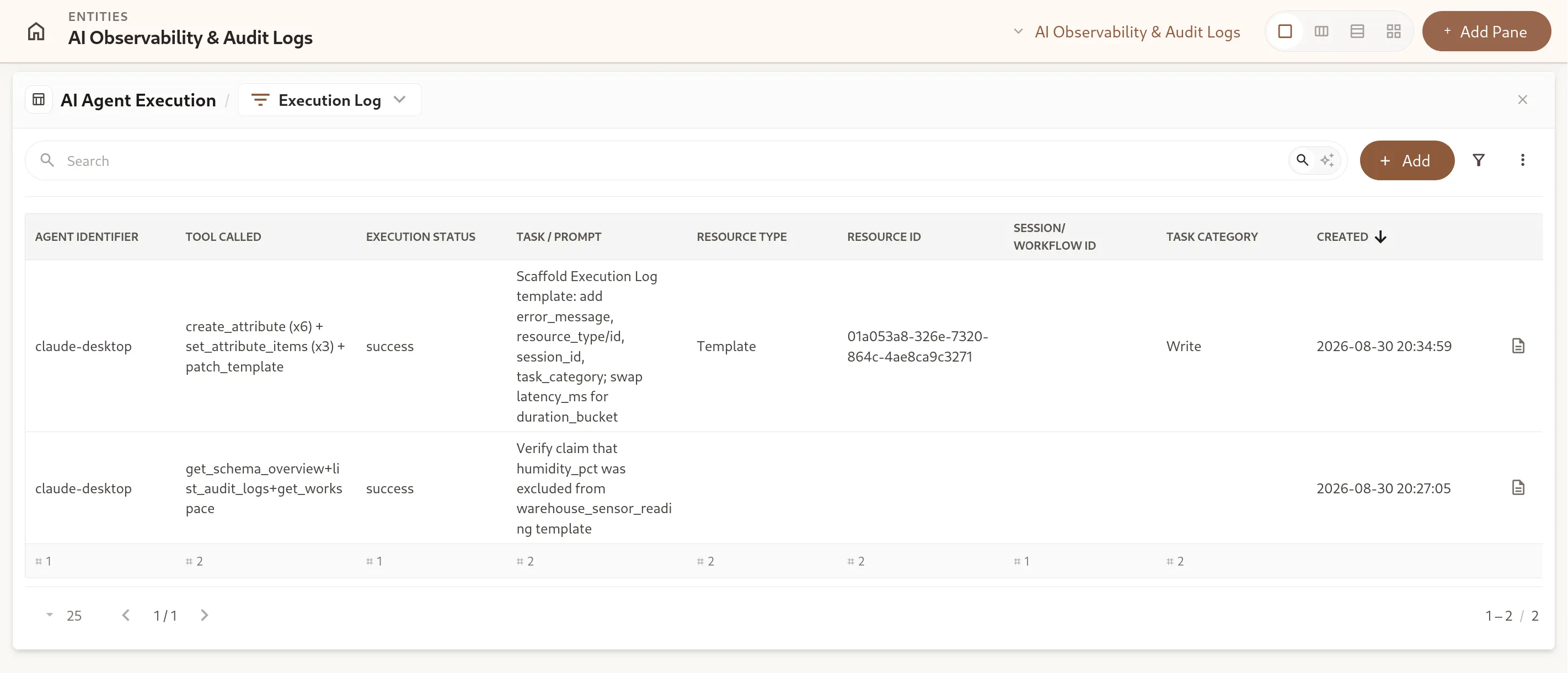
This demonstrates that AI assistants can be self-governing, structured, and fully auditable across any operational domain without writing a single line of backend middleware or proxy infrastructure.
Conclusion
As AI agents become core operators across software environments, governance and auditing cannot be an afterthought.
By combining the Model Context Protocol (MCP) with Omnismith’s dynamic runtime schemas, developers gain an instant, zero-code observability layer that turns ephemeral agent actions into structured, actionable, and immutable records.
Get started by exploring the AI Agent Auditing Blueprint in Omnismith.